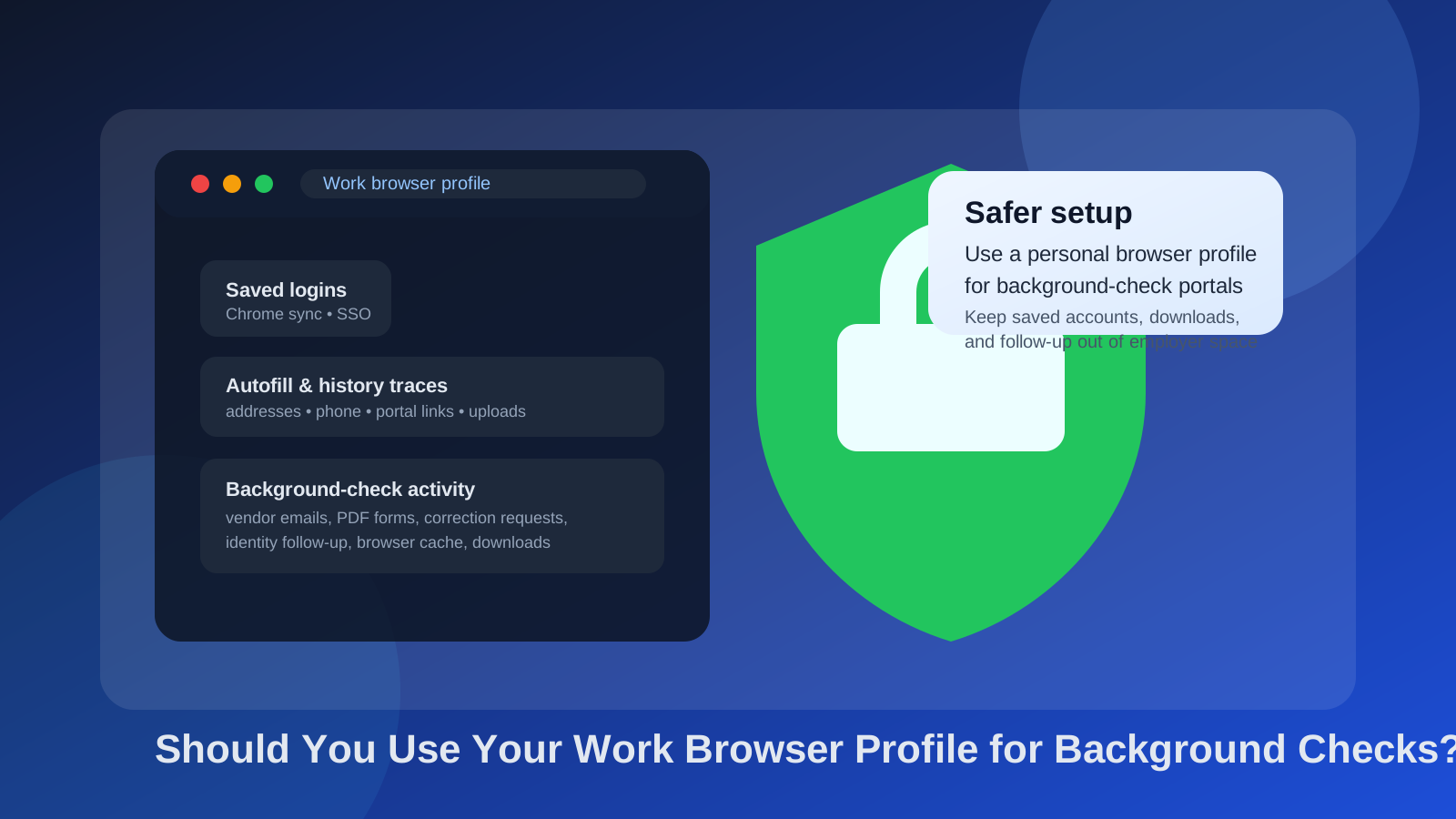
Usually no. You generally should not use your work browser profile for background checks because it can expose screening portals, saved logins, autofill data, and identity-related follow-up inside an employer-managed environment.
A personal browser profile on a personal device is usually safer. It gives you better control over history, cookies, downloads, password storage, and time-sensitive follow-up if the screening vendor needs corrections later.
Why this question matters at the background-check stage
Background checks happen later in the hiring funnel, which means the information involved is usually more sensitive than an ordinary first-round application. You may be dealing with identity-verification portals, consent forms, address history, employment history, uploaded documents, correction requests, and reminder emails from a screening vendor. Even when the process is routine, it often leaves a much richer activity trail than a simple recruiter email.
That makes the browser profile you use more important than many people realize. A browser profile is not just a window you click around in. It can hold your history, cookies, saved passwords, synced tabs, saved payment and address data, extension activity, default download paths, and links to employer-managed accounts. If that profile belongs to your current workplace, background-check activity can end up mixed into an environment you do not fully control.
If you already used Anonibox or another separate inbox strategy earlier in your job search to keep low-value outreach out of your main email, the instinct is right: separation helps. But once background checks begin, the focus usually shifts from disposability to privacy plus continuity. You want a stable inbox and a browser environment you control yourself.
What counts as a “work browser profile”?
A work browser profile is any browser setup tied to your employer’s environment rather than your own. That can include a Chrome profile signed into your work Google account, an Edge profile connected to Microsoft 365, a managed browser with company extensions installed, or even a shared profile on a company laptop that syncs history and credentials behind the scenes.
Some people think, “I am using my own device, just my work Chrome profile, so it should be fine.” Not necessarily. The risk is not only the hardware. The profile itself may still sync with employer-controlled systems, retain browser traces, or route activity through company extensions, policies, and sign-in sessions.
The biggest risks of using your work browser profile for background checks
1. Saved logins and account mix-ups can expose too much
Background-check portals often arrive by email link and may require you to create a password, confirm identity details, or revisit the same session later. In a work browser profile, you may already be signed into company email, calendar, cloud storage, or single sign-on tools. That creates a higher chance of opening a screening link in the wrong account context, saving credentials in the wrong password store, or letting the browser suggest employer-linked identities automatically.
This is not just awkward. It can also make later follow-up messy. If the screening vendor sends a password-reset link, a document request, or a discrepancy notice, you want to know that the whole chain lives in a browser environment you can reach and manage without employer dependencies.
2. Autofill can leak personal details you did not mean to share yet
Browser autofill is convenient until it is not. A work profile may suggest your office address, work phone number, corporate title, previous form entries, or even the wrong email address when you start filling out a screening form. Background-check portals often ask for precise details, and a rushed autofill mistake can create confusion that slows the process down.
That matters because screening vendors may flag inconsistencies even when they are innocent. If a browser inserts old information, incomplete addresses, or the wrong contact line, you may end up creating a problem you then have to fix manually.
3. Browser history and synced activity can reveal confidential job-search steps
A background check is not one page view. It can involve portal visits, consent pages, document previews, uploaded files, correction workflows, and return visits over several days. In a work browser profile, that trail may remain in history, open-tab sync, recent downloads, browser suggestions, and extension logs. Even if nobody is actively looking for it, the profile is still not a private space.
This is especially important if you are trying to keep your job search confidential. A work profile can turn one private hiring step into a visible pattern of activity.
4. Employer-managed extensions and policies may create extra exposure
Many work browser profiles are not plain consumer profiles. They may include security extensions, data-loss-prevention tools, mandatory sync settings, or policies that shape how files open and where downloads go. That does not mean your employer is reading every page you visit. It does mean you should assume the environment was designed for company oversight, not for your private career transition.
If a screening portal involves forms, PDFs, or identity documents, that is not a great environment to rely on.
5. Continuity problems show up at the worst possible moment
Background checks are rarely one-and-done. A vendor may ask for clarification tomorrow. A recruiter may resend a portal invite next week. A small discrepancy in dates or addresses may trigger a follow-up message later in the process. If all of that lives in a work browser profile, you may need to reopen it from the office, on the company network, or in a context where you do not want to handle personal verification tasks.
A personal browser profile is better because you can return to the same links, saved passwords, and downloads whenever you need them.
How background checks differ from early-stage job-search privacy
Early in the funnel, many people optimize for spam control. That is where a temporary inbox or a separate lead-gen address can help. Background checks are different. At that stage, reliability matters more than pure disposability because missing a correction request can delay your start date or create unnecessary back-and-forth.
The best setup is usually a stable inbox you control and a personal browser environment you control. If you used Anonibox earlier for low-trust job-board signups or recruiter lead capture, background checks are usually the point where you keep the separation mindset but move to a longer-lived communication setup.
What should you use instead?
A personal browser profile on a personal device is usually best
This gives you the cleanest mix of privacy and continuity. Your saved logins, history, cookies, and downloads stay in your own environment. You can also revisit screening links later without involving employer hardware or employer accounts.
A dedicated hiring browser profile is even better
If you want extra separation, create a browser profile specifically for hiring activity on your own device. That keeps background-check portals, recruiter links, saved passwords, and uploaded forms out of the same browser space you use for banking, shopping, and everyday personal browsing. It is a practical middle ground between chaos and overengineering.
A personal phone can work for simple steps
If the task is only to open a link, confirm a code, or read a reminder email, a personal phone may be fine. For longer forms, file downloads, or document-heavy workflows, a personal laptop with its own browser profile is usually easier to manage.
If you have no choice and must use your work browser profile
Sometimes you are traveling, under a deadline, or simply caught without another device. If you truly must use your work browser profile, think in terms of reducing exposure rather than creating perfect privacy.
- Do not save new passwords in the work-managed password store.
- Double-check every autofill field before submitting forms.
- Avoid downloading documents unless the portal absolutely requires it.
- Move any saved files off the workflow quickly and securely if allowed.
- Sign out when you finish.
- Shift the rest of the process back to a personal browser profile as soon as you can.
These steps can reduce casual exposure, but they do not change the core issue: a work browser profile still belongs to a work environment.
A quick checklist before you open the screening link
- Is this browser profile signed into employer-managed accounts?
- Could autofill insert the wrong phone number, address, or email?
- Will the process involve downloads, uploads, or identity-related forms?
- Do you need to keep this portal accessible for several days?
- Would you be comfortable if traces of this activity stayed in the profile history?
- Can you switch to a personal browser profile instead?
If those questions make you hesitate, that hesitation is useful. Background-check privacy is not only about what the screening vendor sees. It is also about what your browser environment retains and who ultimately controls it.
Final answer
Usually no. You generally should not use your work browser profile for background checks if you have a personal alternative. The risks are not limited to one portal visit: saved logins, autofill data, sync, browser history, downloaded forms, and employer-managed extensions can all make a private hiring step less private.
A personal browser profile on a personal device is usually the safest option, especially if you pair it with a stable inbox you control. That setup keeps sensitive screening activity organized, reachable, and out of an employer-managed browser space.