Usually no. If employment verification involves portal logins, uploaded documents, or forms with personal data, your work laptop can expose more than you intend.
A personal device or separate job-search setup is safer, especially if you need to send pay stubs, tax forms, background-screening details, or identity documents during the verification process.
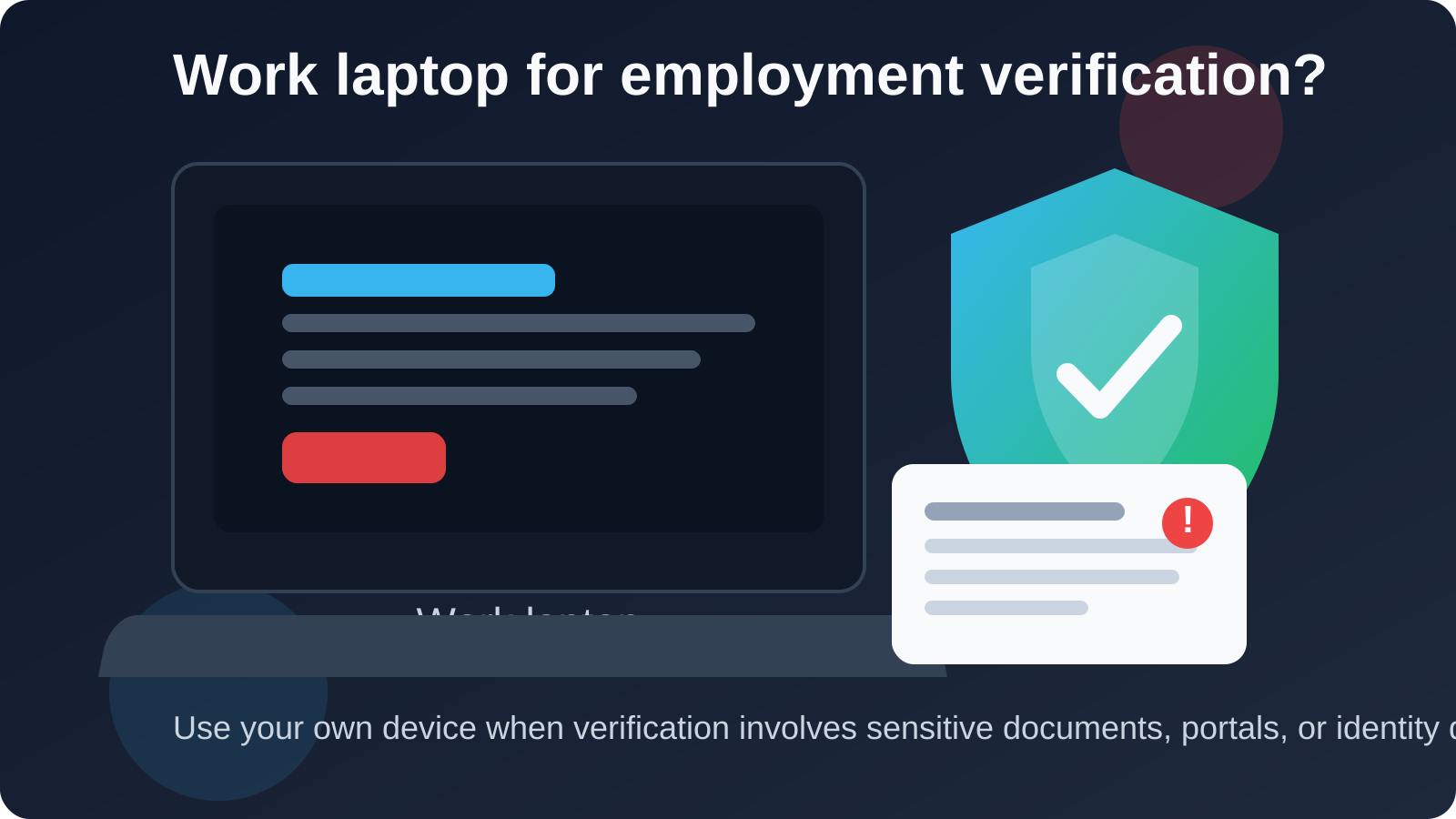
Employment verification feels administrative, but it often sits at one of the most sensitive points in a hiring process. By the time a company or a third-party verifier reaches out, you may be sharing dates of employment, manager contact details, signed authorization forms, compensation records, or documents that connect directly to your legal identity. That changes the privacy calculation. A work laptop may be convenient, but convenience is not the same thing as control.
The safest default is to keep employment-verification activity on a device you personally own and manage. That does not mean every work laptop is automatically spying on you, and it does not mean every employer actively reviews your activity. Policies, tooling, and visibility vary. But if the device belongs to your employer, you should assume they can set the rules, collect logs, and retain records in ways that are not fully visible to you. When the task involves sensitive career or identity paperwork, that is usually enough reason to avoid it.
Why employment verification is more sensitive than a normal application form
Early-stage job applications often involve a resume, a cover letter, and some contact details. Employment verification is different. It tends to happen later in the process, when the information being handled becomes more specific and more consequential.
- Verification portals may ask for signed consent forms.
- You may upload pay stubs, W-2s, offer letters, or contract records.
- Third-party screeners may connect your current and former employers in one workflow.
- You may log into systems using personal email, SMS codes, or identity questions.
In other words, this is the stage where you want fewer traces on employer-managed hardware, not more.
The main risks of using your work laptop for employment verification
1. Employer monitoring can create visibility you do not expect
Many work laptops are managed through device-management tools, endpoint security software, browser policies, VPN agents, or company-installed extensions. That does not always mean someone is reading every screen in real time, but it can mean the device produces logs about websites visited, downloads, applications used, security events, and account activity.
If you use that laptop for employment verification, you may leave a trail that points to a job transition, background screening, or a new employer relationship before you are ready for that information to be visible. Even when there is no active human review, the data may still exist in logs, backups, or admin dashboards.
2. Sensitive documents may remain on the device
Verification often involves PDFs, images, spreadsheets, or signed forms. Once those files touch a work laptop, they can linger in downloads folders, recent-files lists, browser caches, preview panes, cloud-sync folders, or backup systems. Deleting the visible file is not always the same as removing every trace.
That matters if the documents include salary history, legal names, address history, employment dates, or other identifying details. The less sensitive material you place on an employer-managed machine, the better.
3. Saved logins, autofill, and browser history can mix contexts
Employment verification portals sometimes use one-time codes, identity prompts, or third-party providers. If you open them in your normal work browser profile, you risk cross-contamination between professional and personal contexts. Browser history, autofill suggestions, saved passwords, and enterprise single sign-on can all create awkward or revealing traces.
Even if the laptop is technically yours to use during the day, the browser profile may still belong to a work environment that was never meant for personal career transitions.
4. Notifications and account mix-ups can expose private activity
A work laptop is usually tied into Slack, Teams, corporate email, calendar notifications, managed browsers, and sometimes screen sharing. If you are verifying employment during business hours, one accidental tab share, pop-up, or autofill event can reveal more than you intended. That is not just a security problem. It is also a timing problem if you are not ready to discuss your job search.
5. Policy and ownership are not in your favor
The plainest risk is also the most important: it is not your machine. Your employer owns the device, controls the configuration, and may change its policies at any time. If you are deciding where to handle personal career paperwork, that alone is a strong reason to choose something else.
When people are tempted to use a work laptop anyway
There are understandable reasons people do it:
- Your work laptop is the device already open in front of you.
- Your personal laptop is old, slow, or unavailable.
- You need to open a form quickly during the workday.
- The verification request looks minor, such as confirming dates or signing one PDF.
That convenience is real, but the risk is still usually not worth it. Employment verification tends to expand once you start: one portal becomes a document request, then an authorization form, then a follow-up message, then another login. What begins as “just five minutes” can turn into a full chain of sensitive activity on a device you do not control.
Better alternatives
Use a personal laptop or desktop if possible
This is the cleanest option. A personally managed device gives you control over browser history, downloaded files, password managers, saved sessions, and local storage. You can also decide which browser or profile to use without crossing into employer-managed accounts.
Use a separate browser profile on your personal device
If you want extra separation, create a dedicated browser profile for job-search and verification tasks on your own machine. That keeps employment paperwork, recruiter messages, and verification portals away from everyday browsing. It also reduces autofill confusion.
Use your own network when possible
If the verification step includes sensitive uploads or identity forms, pair your personal device with your own trusted network rather than office Wi-Fi. That reduces the number of employer-controlled systems in the chain.
Keep your contact channels organized
For early-stage hiring communication, many people use a separate inbox so job-search traffic does not flood their primary address. Anonibox can be useful for that kind of inbox separation when you want to limit exposure during the research or early-contact stage. Just be practical: once employment verification becomes formal, use an address you can monitor reliably for any follow-up the verifier or employer may send.
If you have no choice and must use a work laptop
Sometimes people genuinely do not have another device available. If that is your situation, the goal is damage control, not pretending the setup is ideal.
- Do the minimum necessary. Handle only the step you cannot postpone.
- Avoid downloading more files than needed. If you can review in-browser and securely save final copies elsewhere, do that.
- Do not use your standard work browser profile if you can avoid it. A separate temporary browser profile is better than your normal managed profile, though it is still not as safe as a personal device.
- Do not save passwords, one-time codes, or documents on the machine.
- Move follow-up steps to your own device as soon as possible.
Even then, treat this as a fallback, not a best practice.
What about a private window?
A private or incognito window helps only a little. It may reduce local browser history and cookie persistence, but it does not change device ownership, endpoint logging, downloaded-file traces, network visibility, screen monitoring tools, or employer policy controls. Private browsing is not a real answer to the larger problem.
A simple decision checklist
Before you use any device for employment verification, ask yourself:
- Will I need to upload or download personal documents?
- Will I log into a third-party screening or verification portal?
- Does this device belong to my employer or use employer-managed accounts?
- Could browser history, saved logins, or notifications reveal what I am doing?
- Do I have a personal device I can switch to, even if it takes a little longer?
If the answer to the third question is yes, that alone is usually a reason to move the task elsewhere.
Final answer
Using your work laptop for employment verification is usually a bad trade. It may be convenient in the moment, but the process often involves exactly the kind of sensitive documents, identity details, and portal activity that you should keep off employer-managed hardware.
If you can, use a personal device, a separate browser profile, and contact channels you control. That keeps your verification steps cleaner, more private, and less likely to leave traces in systems that were never meant for your personal career paperwork.